
Medicare Part D enrollment on Medicare.gov
Keep this guide open while you shop for and enroll in a Medicare Part D plan on Medicare.gov. We’ll explain what to look for without collecting your personal or health information.
Protect your information: enter your Medicare number, medications, and payment details only on Medicare.gov. This guide has no personal-information fields.
Section 1 of 6
Section 1
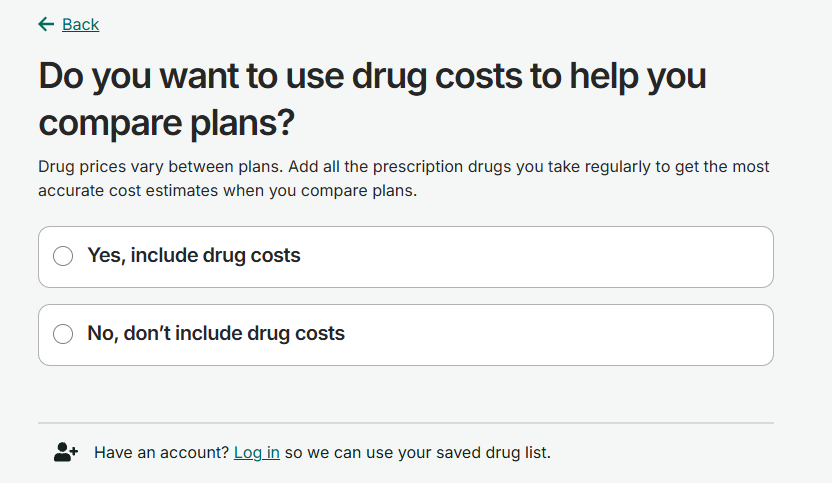
Adding your prescriptions lets Medicare.gov estimate what each plan may cost for the medications you take.
Select “Yes, include drug costs” if you want estimates based on your prescriptions. You can continue without adding drugs, but the plan list will be less personalized.
Good to know: Only enter medication information on Medicare.gov—not on this guide.
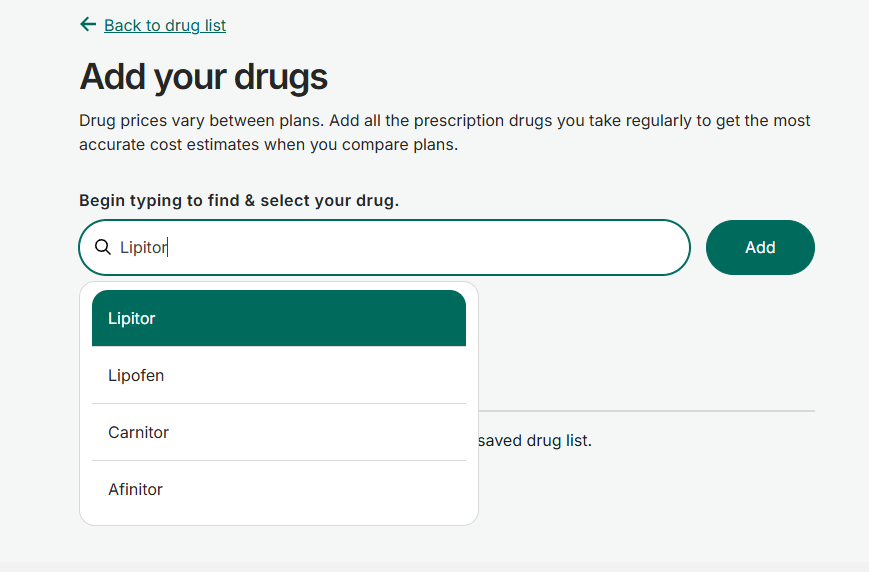
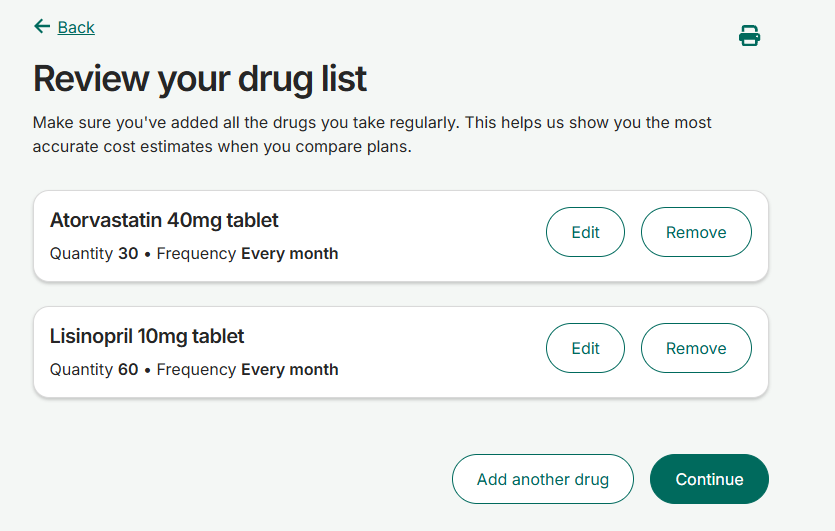
Type the medication name, choose the matching result, and select Add. Repeat this for every prescription you want included.
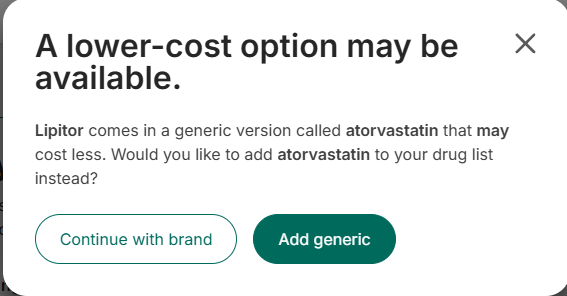
Medicare.gov may show an available generic. Choose the version you actually take or want included in the estimate.
Good to know: Do not change a prescription without speaking with your prescriber.
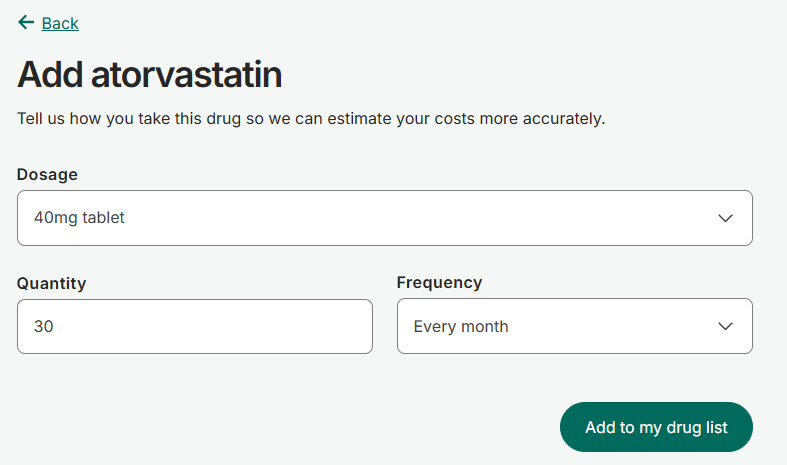
Use the values shown on your prescription label. These details affect the projected cost.
Check each medication and use Edit or Remove if something is wrong. Select Continue once the list is complete.
Section 2
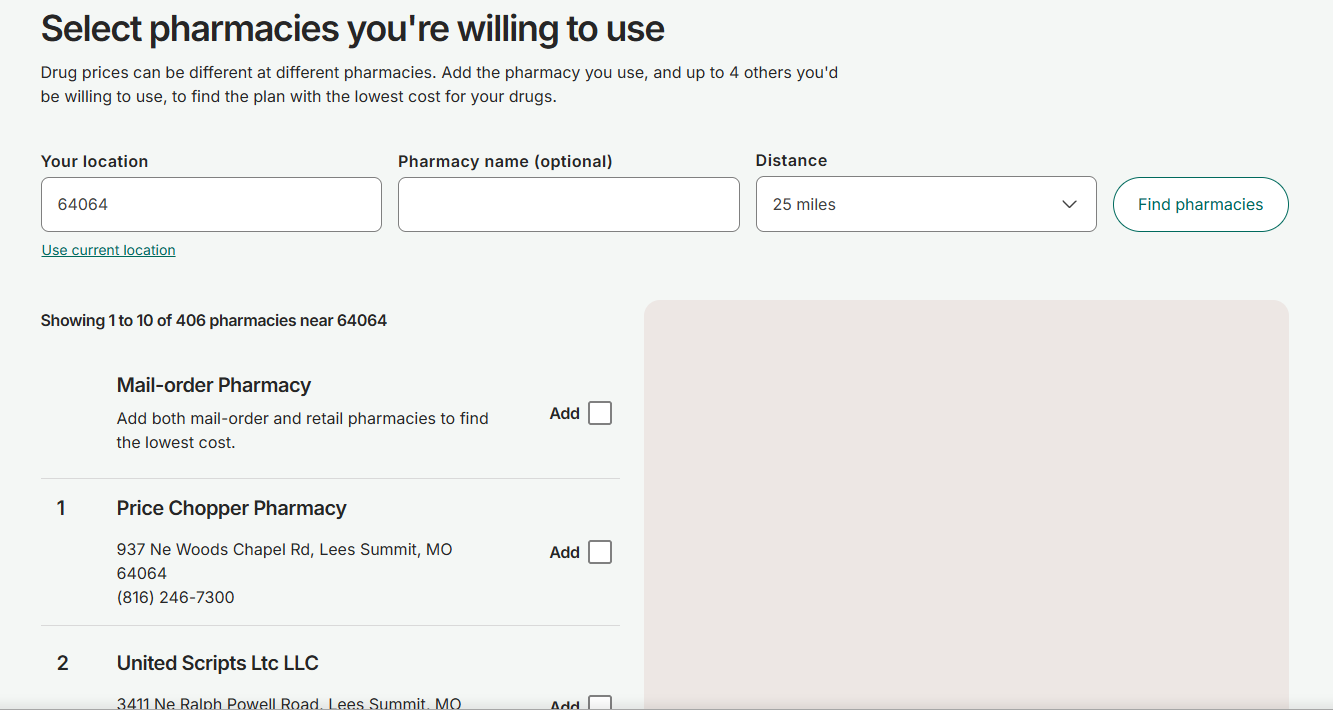
The same plan can charge different amounts at different pharmacies, so this choice matters.
Search near your ZIP code and add the pharmacy or pharmacies you want Medicare.gov to use in its estimate.
Good to know: Including more than one pharmacy can make plan and pharmacy cost differences easier to compare.
Section 3
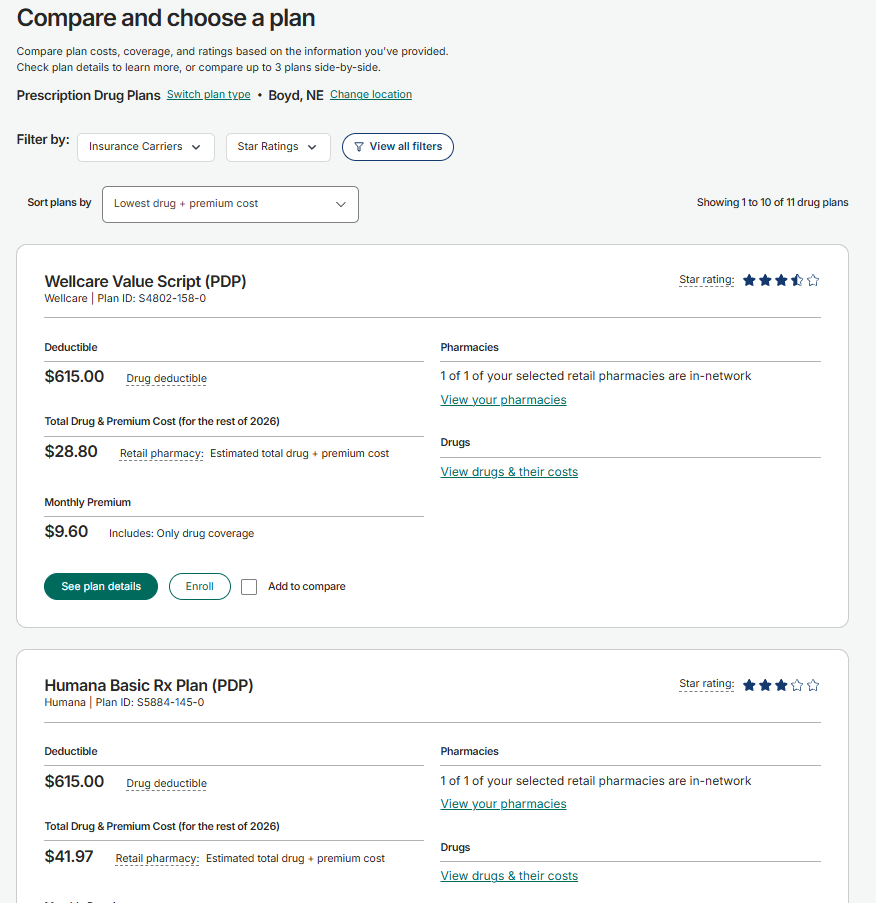
Look beyond the monthly premium. Medicare.gov can combine premiums and estimated prescription costs into an annual estimate.
Plans are generally shown in estimated annual-cost order. The first result may have the lowest projected total for the information entered, but cost is not the only plan feature to consider.
Good to know: Also review covered drugs, restrictions, pharmacy status, deductible, and plan quality.
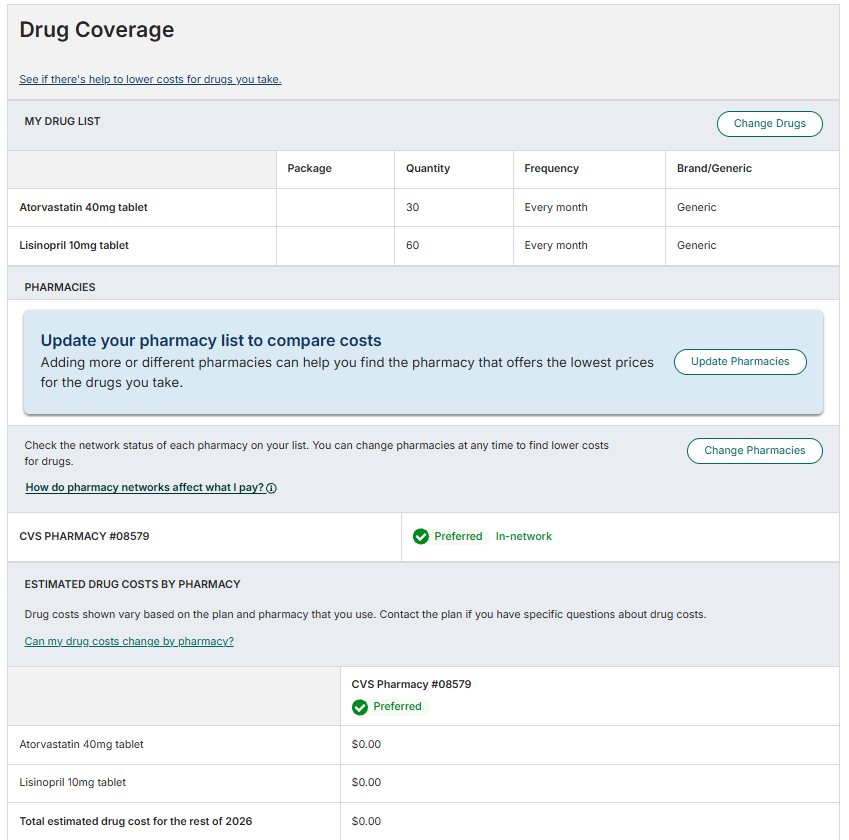
Use “View drugs & their costs” to see the expected price for each medication and how that cost can change during the year.
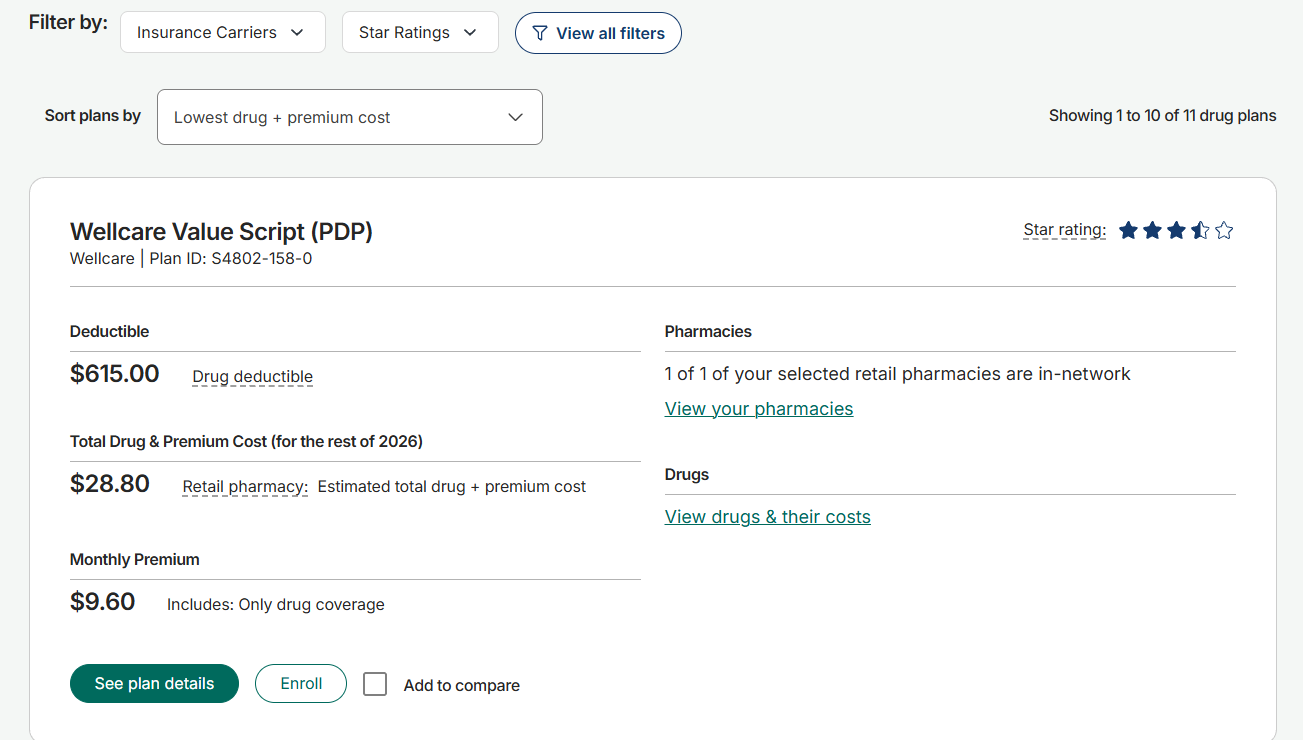
Confirm that every medication is covered and check for prior authorization, quantity limits, step therapy, or other restrictions.
Section 4
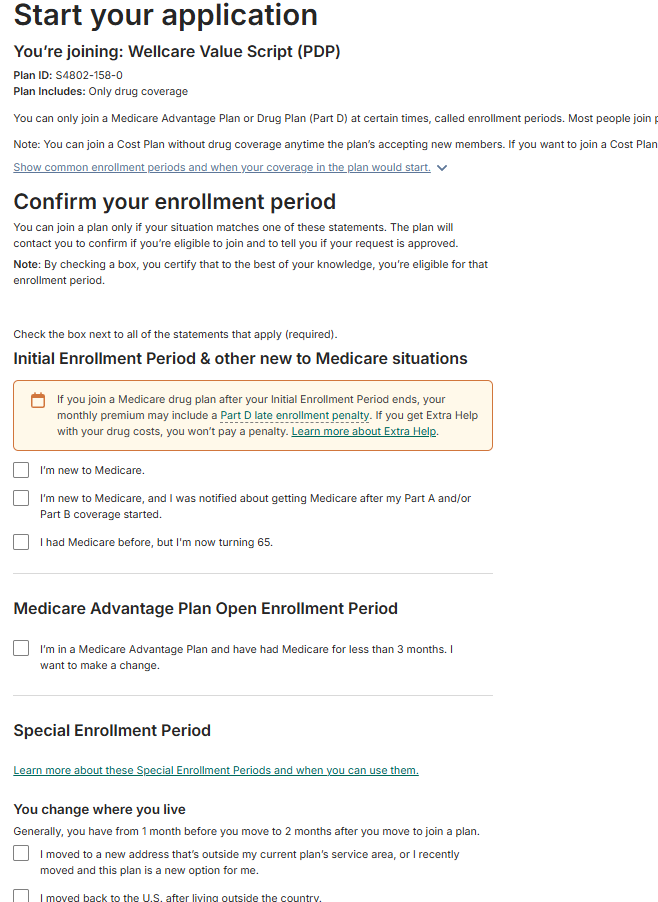
When you have chosen a plan, Medicare.gov moves from comparison into the carrier’s enrollment application.
Select Enroll on the plan you chose, then answer the enrollment-period question truthfully. “Annual Enrollment Period” is offered during the applicable fall enrollment window.
Good to know: Selecting a plan in this guide does not enroll you. Enrollment happens only after you complete and submit the application on Medicare.gov.
Section 5
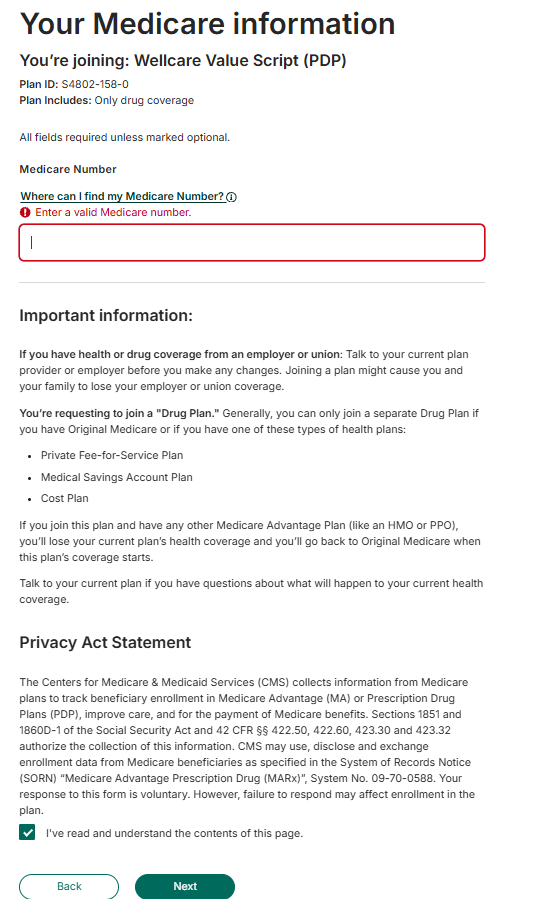
Have your red, white, and blue Medicare card available. Enter all personal information directly on Medicare.gov.
Enter the Medicare number exactly as it appears on the card and complete the acknowledgement shown on the page.
Good to know: SmartMatch will never ask you to enter your Medicare number into this guide.
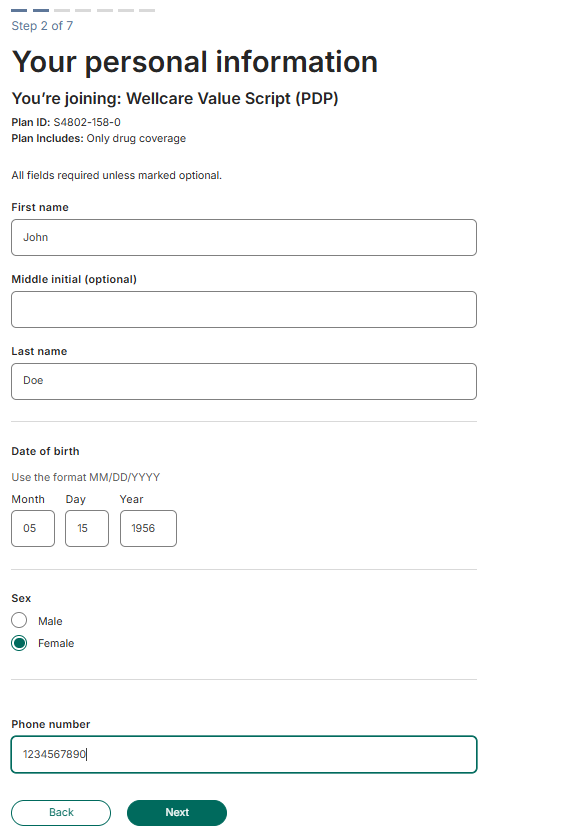
Provide the applicant’s name, date of birth, sex, phone number, and email address as requested.
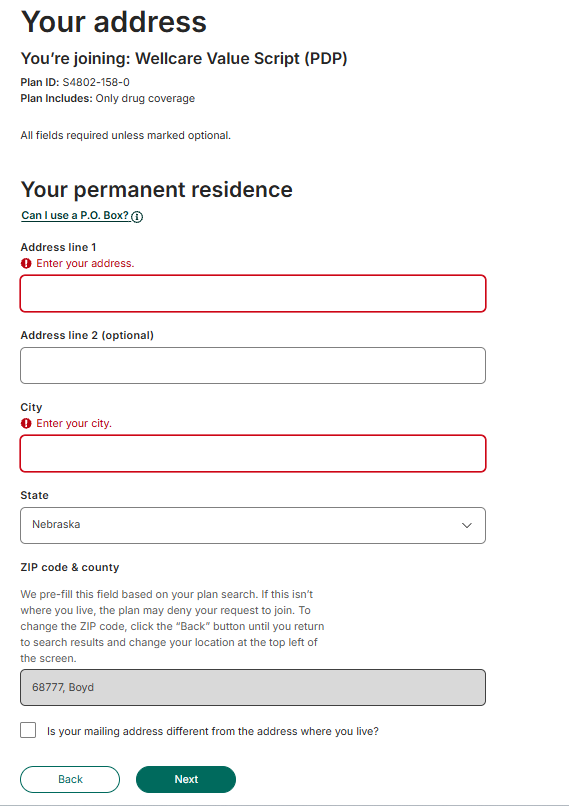
Enter the permanent residence address and provide a different mailing address only when needed.
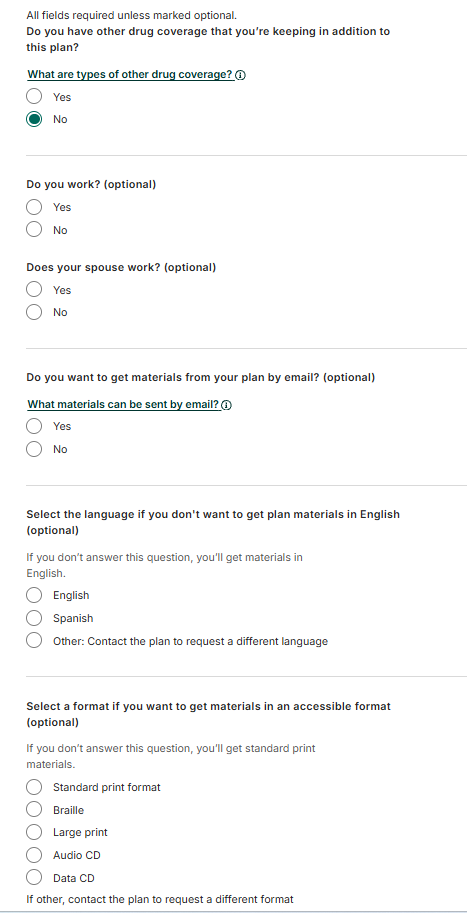
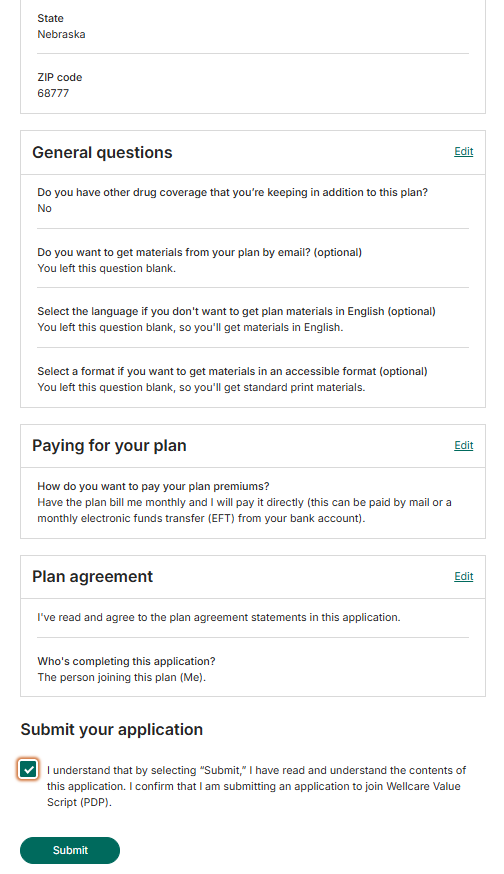
List any other prescription coverage that will remain in place, then answer the remaining application questions.
Section 6
Finish the carrier application carefully. Enrollment is not complete until the final submission succeeds.
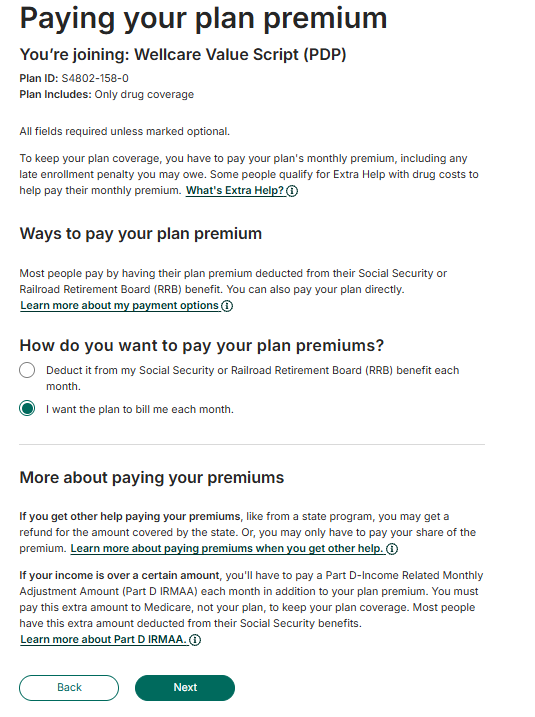
Select one of the options offered by the plan, such as deduction from a Social Security payment or a monthly bill.
Good to know: The available payment methods and when deductions begin can vary by plan.
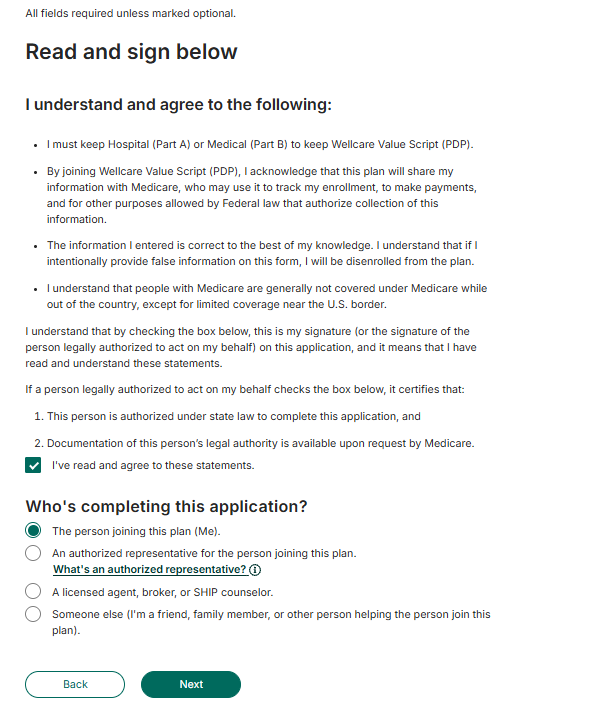
Read the statements, confirm that the information is accurate, and complete the electronic signature fields.
Expand each section, correct anything that is incomplete, and select Submit only when every answer is accurate. Save the confirmation information shown afterward.
This is a solicitation for insurance. Not connected with or endorsed by the U.S. government or the federal Medicare program. SmartMatch Insurance Agency and its divisions are licensed to sell insurance products in all 50 states and DC. Callers will be connected with a licensed insurance agent who can enroll you into a Medicare Advantage, Prescription Drug (Part D) and Medicare Supplement insurance plan.
We do not offer every plan available in your area. Currently we represent 9 organizations which offer 3,239 products nationwide. You can use our Plan Finder tool to see the exact number of carriers and plans we offer in your area. Please contact Medicare.gov, 1-800-MEDICARE (24 hours a day/7 days a week), or your local State Health Insurance Program to get information on all of your options. The plans we represent do not discriminate on the basis of race, color, national origin, age, disability, or sex. Not all plans offer all benefits. Benefits may vary by carrier and location. Limitations and exclusions apply. No obligation to enroll. SmartMatch Insurance Agency represents Medicare Advantage HMO, HMO SNP, PPO, PPO SNP, and PDP organizations that have a Medicare contract. Enrollment in any plan depends on contract renewal.
PLEASE NOTE: Medicare Supplement insurance is available to those age 65 and older enrolled in Medicare Parts A and B and, in some states, to those under age 65 eligible for Medicare due to disability or End-Stage Renal Disease (ESRD). Enrollment in a plan may be limited to certain times of the year unless you qualify for a Special Enrollment Period or you are in your Medicare Initial Enrollment Period.
Get Connected
Choose the option that fits — we’ll send you down the right path.
An Account Executive will follow up to discuss how SmartConnect can support your people.
Please log in to view assigned tenants.

